
What Kelly Page does
Kelly Page turns your PC into a big screen for your Tait P25 radio on the P25X network. It sends and receives status updates, preset messages and texts, shows other radios on a map, keeps the network's bulletins, and can send your position to APRS. Your radio stays a radio: in the usual set-up you still talk on its own microphone.
Kelly talks to the radio through the radio's data port, using Tait's radio interface (called CCDI). Everything runs in your web browser. Nothing is installed on the radio and nothing is sent anywhere except over the air and, for maps and callsign look-ups, the internet.
What you need
- A Windows PC (Windows 7 or later) with Google Chrome or Microsoft Edge (version 109 or later; 109 is the newest on Windows 7). Other browsers can't open a serial port.
- A Tait radio programmed for Kelly: a TM9100 mobile (the usual shack radio), or a TM9400 / TP9400. See Setting up the radio.
- A data lead from the radio's data port to a USB port on the PC (a USB-serial lead, which shows up in Windows as a
COMport). - Optional: Python 3.8 or later (3.8 is the newest on Windows 7), only if you use the IP bridge (
start-kelly.bat) instead of opening Kelly directly. - Optional: internet, for the map pictures and callsign look-ups. Everything to do with the radio works without it.
Installing
- Right-click the zip and choose Extract All…, putting the Kelly Page folder somewhere it can stay, for example
Documents\Kelly Page. Keep everything in the folder together. Don't openindex.htmlstraight from inside the zip: Windows only unpacks that one file, and you get a plain page of black text with no buttons working. - Plug in the radio's data lead and switch the radio on.
- Start Kelly one of two ways:
- Directly (simplest): open
index.htmlin Chrome or Edge. Kelly asks which COM port to use when you connect. - Through the IP bridge: double-click
start-kelly.bat(radio on COM5) or runstart-kelly.bat COM7for another port. It opens Kelly in your browser already connected. Leave its black window open; closing it frees the COM port. The first time, it installs the small serial-port library Python needs.
- Directly (simplest): open
Rather keep the radio away from the PC? A small Raspberry Pi beside the radio can run the IP bridge for you, and you open Kelly from any PC on your home network: see Kelly Page on a Raspberry Pi.
Kelly keeps your settings, radio list and messages in the browser you use. Opening it directly and opening it through the bridge count as two different places, each with its own settings. Pick one way and stick to it, or move your set-up with a configuration file.
Setting up the radio
Whoever programs your radio sets this up once, in the Tait programming application. If you're not sure, ask for the P25X code plug.
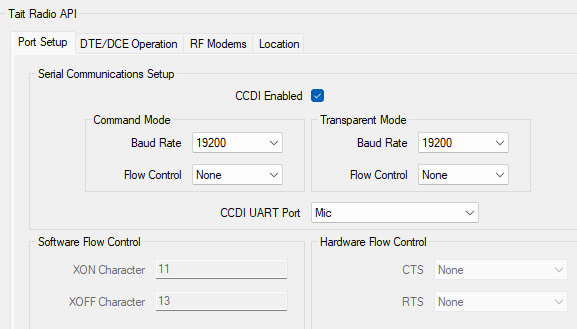
- Tait Radio API › Port Setup, set as in the first picture below:
- CCDI Enabled: on.
- Command Mode and Transparent Mode: Baud Rate 19200, Flow Control None in both.
- CCDI UART Port: the socket your data lead plugs into. The picture shows Mic, for a lead in the microphone socket. With the lead there, the radio's own microphone can't be plugged in, so for Shack mode (talking on the radio's microphone) use the radio's auxiliary connector and choose that port instead.
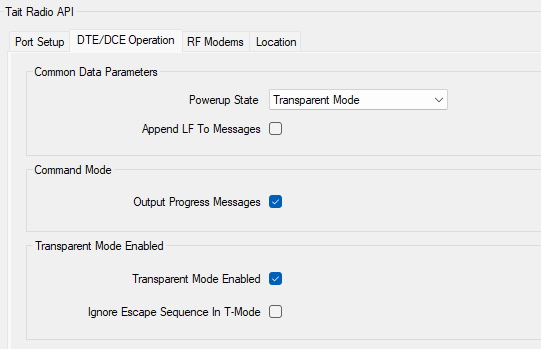
- Tait Radio API › DTE/DCE Operation, set as in the second picture:
- Powerup State: Transparent Mode, so the radio starts up ready for Kelly's Shack mode.
- Append LF To Messages: off.
- Output Progress Messages: on. Kelly uses these to see calls and to tell when the channel is busy.
- Transparent Mode Enabled: on.
- Ignore Escape Sequence In T-Mode: off. Kelly needs to step the radio out of Transparent mode for some commands; with this ticked the radio gets stuck and only switching it off and on recovers it.
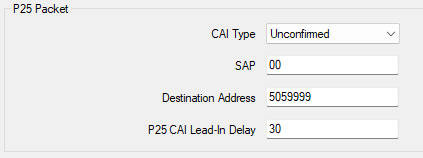
- Tait Radio API › RF Modems, the P25 Packet box, set as in the third picture:
- CAI Type: Unconfirmed. Kelly checks every packet itself and asks again for anything missing. With Confirmed, the radio waits for an over-the-air confirmation the P25X network doesn't send, and other radios on the repeater answer "undeliverable".
- SAP:
00. - Destination Address:
5059999, the P25X gateway. NotFFFFFF(everyone). - P25 CAI Lead-In Delay:
30. Longer makes no difference on P25X.
- The P25X status and preset lists. Statuses and presets travel as numbers, so every radio must have the same lists. They're on Kelly's Code Plugs page, ready to copy into the programming application.
- Radios with GPS: set the location report format to Tait SDM. That's what lets other people locate your radio.
A Tait radio's data port and its programming port can be the same socket. Close the programming application before starting Kelly; only one program can use a COM port at a time.
First start
Choose how you use your radio
The first time Kelly opens it asks one question. You can change the answer later in Admin › Personality.
Shack Mic in hand
You talk on the radio's own microphone and Kelly is the big screen for messages. The radio's PTT, channel knob and scan stay yours. This is the right choice for a TM9100 at home.
Console Kelly at the controls
Kelly is the radio's control head: it keys up, changes channel and shows signal strength and a live P25 monitor. For a radio with no microphone, a remote radio, or bench testing.
Connect
- Open Admin and find Connection.
- Choose Serial, check the baud rate is 19200, press Connect and pick your radio's COM port in the browser's list. (Using the bridge? Choose IP bridge instead, or just use
start-kelly.bat.) A blue Waking up the radio dog… bar appears straight away and counts the seconds while Kelly wakes the radio; that can take about 10 seconds, longer if the radio was left in Transparent mode. It goes away once the radio answers. - Kelly finds the radio, shows its model and serial number, and in Shack mode parks it ready for messages. The P25X gateway answers with your radio's ID.
No radio handy? Demo radio starts a make-believe radio with traffic, so you can look around. Anything the demo makes up disappears when you disconnect.
Your station
Under Admin › My station, put in your radio ID and callsign. Leave Group relay ID at 5059999, the P25X gateway.
The pages
The menu down the left side. In Shack mode the messaging pages come first.
| Page | What it's for |
|---|---|
| Dashboard | Quick send (statuses, presets, a text, APRS, a picture), the radio at a glance, a small map, and the latest bulletin. |
| Messages | Text conversations, one per radio, plus the preset buttons. |
| Bulletins | Notices sent to every radio on the network. |
| RTTY | An old-school teleprinter round table over P25, with a logbook, the RTTY Quest game, the weekly sprint and an HF sound-card modem. See RTTY. |
| Status | Send your status, see everyone else's, and the history. |
| GPS | The map, Locate another radio, and your fixed position for APRS. |
| Cameras | The club's weather cameras at Jordan Creek and Waterson. Pick Latest photo, Last half hour or Today, hourly (a short time-lapse) and press Get it: the P25X gateway shrinks the photos to a few kilobytes, about 4-17 seconds on air depending on what you pick. One request at a time. The last photos from each camera stay on the page, and a red tag warns when a camera hasn't sent a photo for over two hours. |
| QLD Grid Power | Queensland's electricity right now, from Open Electricity (AEMO's market data): total demand on a dial with its 30-minute trend, the power flowing across the NSW border (importing or exporting), the wholesale spot price, and how much each fuel is making -- coal, utility and rooftop solar, wind, hydro, gas and batteries. The P25X gateway fetches it and sends a summary of about 290 bytes, a second or so on air. It asks when you open the page and every 5 minutes while the page stays open (change or turn off Auto refresh); Refresh asks now. Offline, the last reading stays on screen. Rooftop solar is AEMO's half-hourly estimate, so it runs about an hour behind. An SEQ Grid Map tab draws the same live figures as a logical map of how power reaches South East Queensland -- each fuel, the 275 kV backbone, bulk supply and zone substations down to 11 kV towns -- with power streaming along the lines for a few seconds after each reading. The fuel totals are real; how demand divides between the towns is illustrative. |
| SEQ Dam Telemetry | South East Queensland's six main dams over P25: animated tank gauges with the combined SEQ storage and a status glow (Nominal, High inflow, Flood operations, Spillway active), four weeks of history per dam; a P25 Packet Stream tab with link lamps, the real answer's bytes as they crossed the air, and a clearly labelled simulator of per-station telemetry frames; and a River Flow tab with inflow and outflow gauges (m³/s or ML/day), river heights and each dam's storage change. Data from Seqwater and the Queensland Water Monitoring Information Portal, via the P25X gateway -- about 650 bytes, two seconds on air. |
| SEQ Hazard Watch | Bushfires (Queensland Fire Department) and road incidents (QLDTraffic: crashes, hazards, flooding, road closures) around South East Queensland, fetched by the P25X gateway and sent to your radio over P25. A map with fire and traffic layers, each incident's nearest P25X repeater and a dispatch panel; a P25 radio & AVL terminal that plays an incident out as a simulated dispatch, with a unit driving out on the map, beside the real bytes that crossed the air; and a response drill -- pick the nearest repeater, the right talkgroup, and broadcast against the clock -- with badges. Markers show the general area only; for warnings and travel advice use QFD's alerts and QLDTraffic. |
| Space Weather | Live solar and geomagnetic data from NOAA's Space Weather Prediction Center, sent to your radio over P25: X-ray flares, the Kp index, solar flux, sunspots and the NOAA radio blackout / radiation / geomagnetic storm scales, with estimated HF band conditions, MUF and flare absorption for Brisbane. A links tab shows what space weather does -- and doesn't do -- to P25, GPS, HF and satellites (P25 on VHF/UHF barely notices), with a band-noise listener; the arcade has a blackout drill, a Kp forecast log scored against NOAA's real figures, and a Solar School. |
| ISS Tracker | Predicts International Space Station passes over your station (from Kelly's fixed position, your radio's GPS, the browser or a typed position) and shows them live: map, footprint, sky dome and the Doppler shift on 145.800 MHz. Armed, it retunes your radio for each pass and puts it back afterwards -- receive only, it never transmits: in CCR mode it follows the Doppler continuously, or it steps a 5-channel bank you program. Try it with the dry run and a bench test pass first. Also a listen-and-record panel for passes, badges, and a help tab with the ISS frequencies, channel spacing and a programming table. |
| DNP3 Demo | DNP3, the SCADA protocol power utilities use, with a simulated 33/11 kV substation you can switch: breakers, earth switches, tap changers and capacitor banks, with real interlocks and protection. Run it all inside Kelly, or put the DNP3 on air with this Kelly as the outstation (RTU) or the master. Every frame can be read byte by byte. Its second plant is a Wivenhoe pumped-storage hydro trainer: pump water uphill, generate it back, and run the station over DNP3 on a simulated or real P25 link. Its third is a Mackay gas turbine trainer: start, synchronise, load and trip a 34 MW jet-engine peaker, black start a town, and watch the diesel bill climb. See DNP3 Demo and DNP3 over P25. |
| SSTV | Send and receive small pictures over P25. |
| Directory | Sync from gateway fills it with every radio on the P25X network -- name, home / car / portable, who and where last heard -- over P25 packet data; radios you entered yourself are kept as you made them. Your list of radios (name, type, notes) and talkgroups. |
| Calls | Voice calls heard and made. Kelly off all day? Today from gateway fetches the day's P25 calls over packet data and fills in the history (Kelly also does this by itself when it parks after being off for an hour or more). Last heard › Update from gateway brings in everyone the network has heard this week, by voice or data, with the repeater they were on. |
| GPS › Today's tracks | Every radio's GPS reports since 4 am, drawn as a coloured track on the map. Sync tracks fetches them from the P25X gateway over P25 packet data (later syncs only bring newer reports); tick a radio to show or hide it, hover a point for its time, speed and repeater, Fit to tracks to zoom to them. |
| LoRa Mesh | Your Meshtastic, MeshCore or LoRa APRS node next to your P25 radio: mesh chat, the map, contact hunting (📣 Calling now), a P25 ↔ mesh bridge and the Mesh Quest game. See LoRa Mesh. |
| Insights | The P25X network at a glance, like the dashboard's Insights page: an activity timeline and busiest hours, today's Repeater Awards, the weekly leaderboard and kerchunkers, and the Userlist -- every caller ever heard with their talk time. Sync from gateway fetches it all over P25 packet data (a few kilobytes); Kelly syncs by itself when you open the page and the last sync is over 15 minutes old. |
| Radio | Channel, volume and the radio's controls (Console mode mostly). |
| Aliases | Sync from gateway brings in every P25X alias radio the network has heard, with callsigns and names, over P25 packet data (no internet needed; your own entries are kept). P25X radio aliases and callsign look-ups. |
| Code Plugs | The P25X status and preset lists for the TM9100 and TM9400, and the Call List: press Get from gateway to fetch the network's latest call list over P25 packet data (a few seconds), or paste the P25X dashboard's call list (Code Plugs › Call List › Copy (TSV)) and every radio on it gets its name in your Directory. Pass it on to another Kelly user with the Call List's own Copy (TSV). Program radio (TM9100): read the radio's whole code plug to a .m91p file, or program a file Kelly saved into a radio — no programming application needed. Kelly asks you to switch the radio off and on again each time; keep the cable in until it says it's done. Files saved by the Tait programming application can't be programmed from Kelly, and neither can files for other models (a TP9400's .p94p, a TM9400's .m94p): Kelly says so when you pick one. Radio files sends any config file up to 16 MB to the gateway inbox and fetches the club's files; Kelly picks the model from the file's extension and tells you if a file packs too big to send over the air (100 kB packed, about 4-5 minutes). |
| Monitor, Data, Developer | Signal readings, telemetry and the raw radio interface, for the curious. |
| Admin | Connection, your station, personality, alert sounds, labels and your configuration file. |
Everyday use
Send a status
On the Dashboard, press a status under Quick send, or use the Status page for the full list. With To empty it goes to the P25X gateway, which shows it on the network dashboard. Type a radio ID or name to send it to that radio instead. Two ticks (✓✓) mean the gateway received it.
Send a preset message
Presets work the same way. Some presets are also commands for the gateway, which answers with a text: WX (weather), PING, WHO (who's on), SITES (repeater status), ME and HELP.
Send a text
Type it in the Quick send box, or open Messages and pick a conversation. Texts to another radio go through the gateway, and replies come back to Kelly. A radio's screen shows about 160 characters, so keep texts short.
Send a picture
Press Picture on the Dashboard or use the SSTV page. Kelly shrinks the photo to fit; a picture takes the channel for several seconds, so send them sparingly. As it goes, Kelly plays an old-style SSTV warble made from your picture, on your PC only; switch it off with SSTV sound when sending and receiving on the SSTV page.
To another radio: type their radio ID or Directory name in To (leave it blank for the P25X dashboard). The picture goes up your repeater to the P25X gateway, which sends it on through only the repeater that last heard that radio, so the rest of the network stays free. When your part is done Kelly says Picture at the P25X gateway; you then get a text when it has arrived, or if it couldn't be delivered. The other person has to have keyed up on a repeater recently, so the network knows where they are.
To sign your pictures, turn on Put my callsign on the picture: Kelly writes your callsign in big outlined letters in the corner you choose, with an optional second line (your QTH, “73”) and the date and time. The preview shows exactly what will be sent. It uses your callsign from Admin › My station unless you type another.
Receive a picture
Pictures sent to your radio, from the P25X dashboard's SSTV page or from another Kelly, arrive in Kelly by themselves, in Shack mode or CCR. Kelly only takes pictures meant for your radio. It answers the P25X gateway, shows a pop-up, and the picture scans in line by line under Last received on the SSTV page, with the SSTV warble, then goes into the Gallery. The same switch turns the sound off for sending and receiving.
GPS, Locate and APRS
The map
Radios appear on the GPS page as their positions arrive. Click one in the list to fly to it. Clear map forgets every position and trail.
Locate another radio
- On the GPS page, under Locate a radio, type the radio's ID or name.
- Leave the method on Auto, or pick Tait SDM or LRRP (APX).
- Press Locate. The P25X gateway asks that radio for its position, and the answer lands on your map, usually within a few seconds.
The radio must be switched on and have keyed up on a P25X repeater recently, so the network knows where it is. A Tait radio answers only when its location format is Tait SDM; a Motorola APX answers by LRRP. If it doesn't answer, Kelly shows its last known position if the network has one.
Your own position on APRS
A TM9100 has no GPS of its own. Give it a fixed position under Fixed position · APRS on the GPS page (type it, use Pick on map, or this computer's location), add your callsign with an SSID such as VK4XX-15, and press Beacon now, or tick the timer to repeat it. Kelly sends it over P25 to the P25X Reflector, which puts you on aprs.fi and the network map. Choose a lower precision if you'd rather not show your exact address.
My radio's GPS reads the connected radio's own GPS, for radios that have one. Kelly hides it for a radio that doesn't.
Bulletins
Bulletins are notices sent from the P25X gateway to every radio at once: a net reminder, a repeater outage, a storm warning. Kelly keeps them on the Bulletins page with a count on the menu, and the newest one shows on the Dashboard.
Urgent bulletins are marked in red, play the Bulletin alert, and stay on the Dashboard until you open the Bulletins page. Each bulletin has an expiry set by whoever sent it; expired ones hide unless you tick Show expired.
Shack (Transparent home) and CCR home both receive bulletins. A TM9100 in Command home only shows texts in CCR, so it can miss them; Shack is the way to go at home.
PBBS: packet mail and bulletins
The PBBS page is a packet bulletin board, the kind hams have run on 1200-baud packet since the 1980s, carried over P25 instead. The board lives on the P25X gateway. You can send personal mail to another callsign, or post a bulletin for everyone under a category such as WX, SALE, NEWS or DX.
Press 📡 Check mail to dial in. Kelly fetches the list of new messages, then fetches a message's text when you open it, so a quick check only takes a second or two of airtime. Check every keeps checking on its own while the radio is connected. When mail arrives for you, Kelly shows YOU HAVE MAIL, plays the mail fanfare and flashes the PBBS menu badge until you read it.
✍️ New message writes one. Where chooses who sees it. Board only keeps it on P25X. @ WW, AUS, VK or QLD sends it out to the wider packet network through the club's LinBPQ node, and bulletins and mail from that network come back the same way (marked 🌍 packet). The bars under the message show how long it takes on P25 compared with 1200-baud and 300-baud packet.
Sending and getting files
A message can carry one file (a photo, a log, a code plug), up to 64 kB: press 📎 Attach a file in the new-message window. A message with a file shows 📎 in the list; open it and press 📡 Download (pictures show in the reader). Nothing downloads until you ask, and every byte is checked on the way. A file sent @ QLD, AUS or WW goes out to the packet network as 7PLUS, the format packet BBSes have always used for files, and 7PLUS files from the packet network arrive as one message with the file joined back together. A 20 kB photo takes about a minute on P25.
The terminal
Under the mailbox is a green-screen terminal that works like a real packet BBS. Type H for the commands: L lists your new mail, LB WX lists weather bulletins, R 12 reads message 12, SP VK4XYZ starts a personal message (then a title, then your text, ending with /EX on a line by itself), SB SALE posts a bulletin, K 12 deletes one of yours, D 12 downloads message 12's file, and SYNC checks the gateway. Answers type out at the speed you pick (300, 1200 or 9600 baud), with the old modem sound if Modem sound is on. Click the screen to skip ahead. These sounds are only on your PC.
Text BBS to 5059999 for your mail, BBS R 12 to read message 12, BBS SP VK4XYZ your message to send mail, BBS LB for bulletins, or BBS H for help. The gateway also texts you when mail arrives (Kelly in Shack mode gets it straight onto the PBBS page instead). Your callsign comes from your radio ID, so the gateway has to know you, which it does once you've made a call on the network.
RTTY: the teleprinter
The RTTY page is an old-school radioteletype station. Your overs travel over P25 data to the P25X gateway, which passes them on to every other Kelly listening on the same channel. Each over prints on the page the way a teleprinter printed it: one character at a time at 60 words a minute (45.45 baud), with the two-tone FSK sound and the clatter of the typebars, the carriage return, the line feed and the bell. Pick a paper roll, a green or amber glass terminal, or an ASR-33 under ⚙️ Machine & station. Double-click the paper to finish a line at once.
Channels. #MAIN reaches the whole P25X network (call CQ here). 📍LOCAL reaches only the stations on your own repeater. #NET is for nets and #CONTEST for the weekly sprint. 📻HF carries real HF RTTY that Kelly stations copy off the air. Press 📡 QRV to listen. The gateway then sends new overs to your radio for two hours after your last over, as long as the radio is parked (Shack mode). Press QRT to stop.
Sending. Type your over and press Enter (Shift+Enter for a new line). F1-F12 are the classic macros: CQ, ANS, QSO, BTU, BRAG, 73, QRZ, RYRY, contest exchange, TU, a QSL card and your ID. Shift+F-key puts a macro into the buffer instead of sending it. Click any callsign on the paper and it becomes His call, which the macros fill in, together with your name, QTH, grid and rig from Machine & station. Your own overs print in red, like on a two-colour ribbon. 🔔 Bell rings the bell on every machine copying. When your call prints, your machine rings its bell, even when you're on another page. Overs are up to 300 characters, and the counter shows how long an over takes on P25.
QSOs and the logbook. When you and another station both send an over that names the other's call within 15 minutes, the gateway confirms the QSO. It prints a confirmation, rings the bell three times and logs the QSO for you (✅). You can log other contacts from the His call panel. 📒 Logbook exports ADIF or CSV. P25X QSOs are marked as over P25 data in the export, so don't upload them to LoTW as HF contacts.
RTTY Quest is the game: ranks from Messenger to Golden Teletype, 34 trophies, three missions a day, your records, and the club board of gateway-confirmed points (1 point a QSO, 2 when you're on different repeaters). Every Sunday at 7:30 pm there is the P25X RTTY Sprint, an hour on #CONTEST where every QSO counts double. The results go on the channel and to the PBBS. Earn the P25X RTTY Award (Bronze, Silver, Gold, Worked All P25X) and print the certificate.
Art, tape and news. 🎨 Art & tape has RTTY art, a banner maker and a printed QSL card. A picture costs about 10 bytes on P25, because every Kelly prints it from its own copy. The paper tape under the printer punches every character as five holes, and you can save it or load a text file into the keyboard. 🗞️ News printer prints PBBS bulletins on the teleprinter, wire-service style. 📟 Copy to PBBS posts the channel's recent overs to the PBBS as an RTTY bulletin, and 📟 Mail in the His call panel writes to the other op.
Real HF RTTY. 📻 HF modem turns your PC's sound card into an RTTY modem for your HF rig. Connect the rig's audio out to the PC and press Start receiver. Tune until the crossed ellipses stand up straight, or click the mark tone on the waterfall. AFC takes care of the last few hertz. To transmit, connect the PC's audio to the rig with VOX and type in Send on HF, or tick Also key my P25X overs on HF. Kelly only makes the audio: the transmitter and the licence are yours. Share my HF copy puts what you copy on the P25X #HF channel. 📖 Reference has the Baudot chart (the code printing now lights up), the big worldwide RTTY contests, DX-cluster RTTY spots and the RTTY shorthand.
Text RTTY to 5059999 for the last three overs on MAIN, or RTTY CQ CQ DE VK4XYZ to send an over to MAIN.
Web: web pages as text
🌐 Web reads web pages over P25. The P25X gateway fetches the page and sends only the words (headings, paragraphs, lists and numbered links), one screen at a time: about 1 kB and a few seconds of air a screen. Pictures, scripts and adverts never touch the air. It's slow, and it's meant to be: expect about 6 seconds for a page to open.
- Going somewhere: type a web address (
text.npr.org) or some search words in the box and press 🌐 Go. The buttons underneath are pages that work well as text. - Links show as small numbers after the words. Tap one, or type its number in the box.
- Next screen › reads on. Screens and pages you've already seen, and ◀ Back, come from memory with no air at all.
- Reader keeps just the article on news sites. ⟳ fetches the screen again, fresh from the site; ☆ bookmarks the page.
- Sites built with JavaScript (the new BOM site, for one) come through as menus only. Use the Weather page for the weather.
LoRa Mesh
LoRa nodes are pocket-sized radios that pass short texts and positions to each other over kilometres, every node relaying for the others. The LoRa Mesh page puts that mesh beside your P25 radio. It works with Meshtastic nodes, MeshCore companion nodes and LoRa APRS trackers, connected by USB cable, Bluetooth, or a Kelly bridge (the club's MeshCore node at the Ipswich gateway is reachable this way: ask for its bridge address). No node? Pick Demo mesh to try it, or press 📡 Mesh near me (via P25) and the P25X gateway sends you the Meshtastic nodes and chat around you over packet data.
Set your callsign (Admin) and your position (GPS › Fixed position) first: the page shows every node's distance, compass bearing and grid square from them.
Connect your phone
With Kelly on a Raspberry Pi at home, your phone can join it for LoRa Mesh by scanning a QR code. The P25 radio stays with the Pi.
- On the PC, open Admin › Connection › 📱 Connect a phone (or 🔳 next to the Mesh bridge address on this page) and press Show QR. The code holds your bridge's password (its token), so only show it to your own phone.
- On the phone, on your home WiFi, scan it with the camera and open the link. If Kelly is already open on the phone, use its 📷 Scan a Kelly QR button instead (a phone with no link shows it in a banner at the top).
- The first time, the phone warns about the certificate: choose Advanced › Proceed. It's your own Pi's certificate.
- Kelly opens on LoRa Mesh and goes MESH ONLINE by itself. Messages that arrived while the phone was asleep appear when you come back. Awards earned on either device show up on both, and so do your station details (callsign, radio ID, fixed position, APRS call): change them on either one. Each device still decides for itself whether it beacons to APRS.
If the bridge's token is ever changed, scan a new code: the old link stops working.
Hunting contacts
The 📣 Calling now card collects every station asking for a contact (CQ, QRZ, "anyone about?", or the mesh way: "Hello", "Ping", 👋, "Hi from …"). Each card shows how far and which way, and 🎯 Answer opens a reply ready to send. Turn on ☁️ Callers from the gateway (via P25) and the gateway pushes callers within your radius while your radio is parked. Who puts licensed hams first (or shows hams only): a ham is a node in licensed (HAM) mode or with a callsign in its name.
Mesh and P25 by callsign
The P25 bridge card links the two (off until you switch it on; bridged texts carry your callsign). On the mesh, @VK4SIR hello goes to that ham's P25 radio. On P25, @mesh hello all goes onto the mesh, @mesh @VK4GJW hello goes to that ham's node, and @re thanks answers the mesh station that last reached you. A ham whose P25 radio Kelly knows shows 📻 also on P25, with a button to text them on P25; P25 radios with GPS appear on the mesh map.
A mesh message with Meshtastic's alert bell, or the words SOS, MAYDAY or EMERGENCY, sounds a siren, pins a red card at the top of Calling now and goes straight to your bridge's P25 radio with its position, even with the rest of the bridge off. Please only use those words for real emergencies.
Packet paths and golden packets
Hover a station on the mesh map and Kelly draws every hop its packets took to reach you, each repeater named with the kilometres of each leg, the way aprs.fi shows an APRS station's path. The 🧠 Packet paths & golden packets card under the map turns the routes into a picture of the network (busy links thicker, backbone repeaters bigger), with Hide the noise to show only stations far away.
Hearing a far station is one-way. A golden packet is a packet you sent that reached it, proven by its answer: a delivered message (✓✓), a traceroute, or a route your node learned back. 🎯 Go for gold tries it on the farthest stations: first along the reverse of the path they reached you by, then by path discovery, then by an ordinary message. Each try transmits, so it's one per station every 10 minutes, six an hour, and only when you press the button. The best two-way exchanges are ranked under 🥇 Golden packets, with both routes on the map.
Mesh Quest
A game for the mesh: personal records (longest direct contact, most hops, weakest signal decoded, the longest golden packet…), 45 trophies, levels named after the licence grades (Listener, Foundation, Standard, Advanced, then DX Hunter up to Hall of Fame), three daily missions the whole club shares, and a club leaderboard sent over P25 packet data. Sending earns points for your first 10 messages a day only: the mesh is shared airtime. Switch it off under Mesh sounds & effects.
The full LoRa Mesh guide (lora-mesh-guide.html) has every trophy and mission, worked examples and troubleshooting.
APRS iGate: MeshCore trackers on aprs.fi
The 🗼 APRS iGate page makes your Kelly an iGate. When your MeshCore node hears a node on your list, Kelly sends its position to APRS-IS and it appears on aprs.fi under its owner's callsign. It works through the Kelly bridge's internet connection or over P25 via the P25X gateway (Auto picks). It is receive-only and passes positions only: never messages, and never anything back onto the air.
- Connect your MeshCore node on the LoRa Mesh page and leave it connected.
- On APRS iGate, check your callsign, and pick an SSID (
-10is usual for an iGate). The Kelly bridge works out the APRS-IS passcode itself. - Put nodes on 🗼 My list: add one from your MeshCore contacts, take the ones Kelly offers (heard nodes with a callsign in their name), and let the club list add its known users. Edit or remove any of them.
- For telemetry on aprs.fi (battery, solar, temperature...), press Telemetry on a row, pick a device type, Read the node now, adjust the five values and save.
- Turn on Dry run and the iGate, and watch the log. When it looks right, turn Dry run off.
To put your own tracker on the map, name it with your callsign (e.g. "VK4AZ Car"): Kelly iGates that hear it offer to add it. Kelly can also beacon your position through your own node, rounded to about 1 km if you prefer.
A tracker is gated only under its owner's own amateur callsign. Only add nodes you recognise: anyone can put any callsign in a node name.
The full guide (igate-guide.html) covers telemetry, buying and setting up a MeshCore GPS tracker, the club list admin's job, and what each counter means.
SEQ Hazard Watch: fires and roads
🚨 SEQ Hazard Watch shows current bushfires (Queensland Fire Department) and road incidents (QLDTraffic: crashes, hazards, flooding and road closures) around South East Queensland. The P25X gateway fetches both and sends one short answer to your radio, about a kilobyte and a few seconds of air. It asks when you open the page and every 5 minutes while it stays open.
- Hazard Map: tick 🔥 Fires and 🚗 Traffic to choose the layers. Click an incident to open its P25 dispatch panel: the nearest P25X repeater and a talkgroup. ▶ Play out the dispatch sends a practice unit driving out on the map.
- P25 Radio & AVL: that dispatch as P25 traffic -- grants, short data messages, EN ROUTE / ON SCENE and the unit's positions as it drives in. It is simulated on made-up club talkgroups, for training; nothing real is intercepted. Beside it are the real bytes your radio received.
- Dispatch Arcade: an incident pops up -- pick the nearest repeater, the right talkgroup, then Broadcast, inside 15 seconds.
- A new serious incident flashes a banner with an ACK button. Markers show the general area only. For real warnings and travel advice, use QFD's alerts and QLDTraffic.
Space Weather
🌞 Space Weather brings NOAA's solar and geomagnetic readings over P25 (about 350 bytes): the X-ray flare level, the Kp index, solar flux, sunspots, and the R (radio blackout), S (radiation storm) and G (geomagnetic storm) scales with NOAA's 3-day outlook.
- Operations Centre: the sun, the X-ray and Kp charts, and an estimate of HF band conditions, MUF and flare absorption for Brisbane's sun angle -- good for learning, not a forecast.
- P25 & Propagation: what space weather is doing to our links now. P25 on VHF and UHF barely notices -- even a big flare costs a fraction of a dB -- but HF, GPS positions and satellites can suffer. 🎧 Listen plays six seconds of what a band might sound like.
- Blackout Arcade & Solar School: a quick quiz drill, a Kp forecast you make for the next 3 hours (scored later against NOAA's real Kp), and short lessons on flares, Kp, the ionosphere and why P25 shrugs it off.
ISS Tracker & Auto-Tuner
🛰️ ISS Tracker predicts when the International Space Station passes over you and shows it live: the map and footprint, its path across your sky, and the Doppler shift on 145.800 MHz (about ±3.4 kHz). It uses your position from GPS › Fixed position or the radio's GPS (or the browser, or one you type in). Press 🔄 Fresh elements once with the radio connected; after that Kelly refreshes the orbit data itself, at most once a day.
Auto-tune retunes your radio for each pass and puts it back afterwards. It is receive only -- it never transmits. Two ways:
- CCR (best): Kelly puts the radio in CCR mode and follows the Doppler, a few hundred hertz at a time. Needs a VHF Tait with CCR enabled in its programming. Leaving CCR at the end reboots the radio (about 10 seconds).
- Channel bank: program five receive-only channels (the Help tab has the table) and Kelly steps through them as the Doppler moves.
Set it up in this order: tick Dry run and press 🔧 Bench test pass -- the command log shows what would be sent. Then untick Dry run and run a bench test pass with the radio on the desk. Then tick Armed. Kelly warns you 5 minutes before a pass, retunes at the start (AOS) and puts your channel, volume and squelch back 15 seconds after the end (LOS), on whatever page you're on. ⏹ Cancel & restore now puts it back straight away. The Help tab lists the ISS frequencies: voice downlink 145.800 MHz, voice uplink 144.490 MHz in Australia, APRS 145.825 MHz.
DNP3 Demo and DNP3 over P25
🔌 DNP3 Demo teaches DNP3, the SCADA protocol power utilities use, with a simulated 33/11 kV substation. Choose how it runs at the top of the page:
- In this page: the substation, its outstation (RTU) and a SCADA master all in Kelly, joined by a simulated link you can slow down or make lossy. Nothing goes on air.
- Over P25 RF -- this Kelly is the outstation: needs a TM9100 parked in Transparent (Admin › Home mode). Your substation answers DNP3 over the air. The P25X dashboard's DNP3 MASTER page can poll and switch it: set its site to your radio's repeater and its outstation address to the one on this page; its breaker trip and close switch feeder F1.
- Over P25 RF -- this Kelly is the master: polls and controls an outstation elsewhere over the air. Another Kelly as the outstation needs the gateway to pass frames between the two radios, which is still to come.
Every frame can be read byte by byte in the Packet Inspector, which also shows which objects carry a timestamp, how a master sets an outstation's clock, a plain-English line for each frame and a sequence diagram of the last few.
The Wivenhoe pumped-storage trainer
Pick 💧 Wivenhoe pumped storage under Plant at the top of the DNP3 Demo page (or press Run Wivenhoe in the SCADA trainer on the QLD Grid Power map's Hydro box). It is a training simulation inspired by Wivenhoe Power Station near Brisbane. It isn't connected to the real station or its operator, and the figures are approximate.
Water is pumped up from Lake Wivenhoe to Splityard Creek Dam on the hill when power is cheap. When Queensland needs power, it runs back down through two reversible pump-turbines in an underground cavern. The picture shows it all moving: levels rise and fall, water flows along the tunnel, the turbines spin (backwards when pumping), the breakers swing open and shut, and the line to the grid glows green when exporting and amber when importing.
- Role: Both puts the master and the outstation (RTU) in your Kelly, talking over a simulated P25 link. Start with this. Master station makes you the control room: the station is "far away" and you only see what DNP3 tells you. Outstation makes you the RTU at the station: a stand-in control room polls you, and your buttons are the local panel.
- Screen: in Both, SCADA shows what the master knows and Plant shows the truth. Switch between them while the link is bad.
- Time: 10 minute demo (4 min pumping, 4 generating, 2 idle) and 30 minute demo run the station for you, sending their commands over DNP3 so you can watch them. Real time follows the station's day: pumping overnight, generating into the evening peak. In Manual you drive, and you set the time speed.
- Interlocks: no pumping when the upper reservoir is full, no generating when it's low, no running with a breaker open, and no going from pumping straight to generating. The emergency stop trips both units and opens the generator breaker until it's reset. When a command is refused, the reason is shown.
- P25 link: sliders for latency, packet loss and signal strength (RSSI), plus live packets and bytes per second, how busy the channel is, retries and round-trip time. ✂️ Cut the link to see what happens: the master's screen goes stale, the RTU flags BI0012 "P25 Link Healthy" off, and changes wait in the RTU until the link is back.
- Sound starts off. Press 🔇 Sound off to turn it on: breaker clunks, the alarm horn (stopped by Acknowledge) and a radio chirp for each packet. The turbine hum and water rush are a separate tick box.
- Challenges: Evening peak (get 400 MW on the grid in 90 s), Low reservoir (deliver the energy without the LOW alarm) and Bad radio day (keep SCADA working with 30 % packet loss). Your best results are kept.
On a real P25 link: set Link to 📻 Real P25 radio with a TM9100 parked in Transparent (Admin › Home mode). As the Outstation, any DNP3 master on the P25X network can poll your station, including the dashboard's DNP3 MASTER page; it sees the binary inputs, its breaker CLOSE starts Unit 1 pumping (BO2001), and its TRIP is refused as a format error. As the Master station, your radio transmits a poll every 15 s or more, and you're asked first. Another Kelly as the outstation needs the gateway to pass frames between the two radios, which is still to come. Both isn't offered on air.
The Mackay gas turbine trainer
Pick ⛽ Mackay gas turbine under Plant at the top of the DNP3 Demo page (or press Run a gas turbine peaker in the SCADA trainer on the QLD Grid Power map's Gas box). It is a training simulation inspired by the former Mackay Gas Turbine (decommissioned 2021). It isn't affiliated with Stanwell, and the engine and fuel figures are approximate, for education.
One Rolls-Royce Olympus, an engine from the jet that flew the Vulcan bomber, drives a 34 MW generator on diesel. The cutaway shows it all working: the compressor and turbine blades spin with N1, N2 and the power turbine; the eight combustor cans light one after another; fuel runs from the tanks to the engine; the exhaust glows harder with load; the synchroscope needle turns towards 12 o'clock; and the line to the Mackay network glows while the unit is exporting. Under the picture are the start progress strip and the fuel figures: litres a minute, litres burned this run, what that costs, the CO2, and how fast it would fill a car, a tanker or a swimming pool.
- Role and link work as on the Wivenhoe trainer. Both (the default) puts the master and the RTU in your Kelly over a simulated P25 link. Master station makes you the control room, seeing only what DNP3 tells you. Outstation makes you the RTU at the station, with your buttons as the local panel.
- Time: Real time, ×10 and ×60 leave the driving to you. Demo cycle runs it for you, sending every control over DNP3: a cold start to full load, a normal stop, a blackout with a black start, the town running on an island, the network coming back, a trip, then a reset and a restart. The start itself always runs at real speed (about 80 seconds from cold to on load), so you can watch it. The time speed moves the fuel, the tanks, the temperatures and the counters.
- Starting: press ▶ Start (BO2001). The strip shows each step: pre-start checks, lube oil, crank and purge, light-off, accelerating to idle, the power turbine coming up to 3000 rpm, excitation, synchronising, then the load ramp to the MW setpoint (AO3001). If the unit can't start, the reason is shown in plain words, with the permissives list ticked and crossed.
- Trips: overspeed, high exhaust temperature or spread, high vibration, low lube oil pressure, flame out, fire (with the CO2 discharge), fuel low-low, generator protection (reverse power, over- and under-frequency) and the emergency stop. Each trip shows its first-up alarm. Wait for the engine to run down, then press ↺ Reset trips (BO2004). The Instructor card makes these faults happen at the plant.
- Black start: in a blackout the station bus is dead and the unit can only start from its battery in BLACK START mode (BO2007). It closes onto the dead bus and holds 50 Hz on its own. Then close the line breaker (BO2006) to bring the town back. A town bigger than 34 MW pulls the frequency down until the unit trips.
- ⛽ Fuel + the town: set how many homes and the average load per home to see the megawatts, the litres an hour and how long the storage tank would last. The fuel figures (fuel use per kWh, density, price, CO2 per litre, tanker size, tank size) can all be changed. They are estimates.
- Sound starts off. Turn it on with 🔇 Sound off and the engine is loud: the starter whine, the light-off whump, the jet roar rising with the spools, the generator hum, breaker clunks, synchroscope ticks getting faster near sync, the alarm horn (Acknowledge stops it) and a radio chirp for each packet. engine sound switches the continuous sounds on and off by themselves. heat shimmer over the stack is off unless you tick it, and your device's reduced-motion setting stops the flicker, smoke and shimmer.
- Challenges: Blackout! (black start the unit and light the town), Peak demand (cold to full load as fast as you can without a trip), Fuel watch (follow the evening peak with about 44,000 L left) and Bad radio day (start it and load it from the control room with 30 % packet loss). Results show the time, the litres burned and any trips, and your best results are kept.
On a real P25 link: set Link to 📻 Real P25 radio with a TM9100 parked in Transparent (Admin › Home mode). As the Outstation, any DNP3 master on the P25X network can poll the station. The dashboard's DNP3 MASTER page sees BI 0 as BI0001 Unit Available, and its BO 0 is BO2001 Start Unit (CLOSE starts it). On air the master polls no faster than every 15 s for events and every 120 s for a full poll. As the Master station, the outstation has to be another Kelly running this station, which needs the gateway to pass frames between radios (not built yet). The challenges and Both need the simulated link.
Learn DNP3 with the gas turbine
- Start it over DNP3. On the Operator tab, press Start. Watch the control: SELECT BO2001 (the RTU checks the start permissives and arms), then OPERATE, then done. What just happened? says it in plain English, frame by frame.
- Get refused. Press E-STOP, then Start. The SELECT comes back BLOCKED with the reason, "Can't start: the emergency stop is active". Switch to Local (BO2008 TRIP) and every control comes back LOCAL, except BO2008 itself, which is how you switch back to Remote.
- Setpoints are analog outputs. Send AO3001 = 34 MW and look at it in the inspector: group 41, a SELECT and OPERATE of its own. Try 40 MW: OUT OF RANGE.
- Deadbands. As the unit loads, the fuel flow (AI1019) and MW (AI1001) only make class 2 events when they move by more than a deadband, or the radio channel would be full of them. The Points tab shows each point's class and deadband.
- The first-up comes from timestamps. Cut the link, then use the Instructor card to trip the unit (hot EGT, say), and press E-STOP after it. Restore the link. The trip events arrive late, each stamped with the RTU's own clock, and SCADA puts the right one first: that's why the RTU stamps every event.
- What SCADA can't see. Switch Screen to SCADA. The start step is worked out from a handful of points, the eight flames become one "Flame Detected" point, the eight thermocouples become an average and a spread, and the synchroscope isn't there at all. SCADA only knows what it has points for.
- Counters (class 3): C4002 Fuel Burned Litres sends an event every 1,000 L. On a slow channel you choose how much detail is worth the airtime.
Learn DNP3 with this demo
- Polls. Open Packet inspector. Every few seconds the master asks for class 1, 2 and 3 events: only what has changed, which keeps polls small on a slow radio channel. About once a minute it asks for class 0 as well: every value, an integrity poll. Click a frame to read it in plain English, then byte by byte.
- Events and confirms. Start a unit. A binary input event (class 1) says Unit 1 started pumping, and analog events (class 2) carry the MW and levels once they move past a deadband. The reply has CON set: the master must CONFIRM before the RTU deletes those events.
- Select before operate. On the Operator tab, press a button and watch the steps: SELECT (the RTU checks the interlocks and arms), then OPERATE (same object, next sequence number), then done. Try pumping with the upper reservoir full: the SELECT comes back BLOCKED, with the reason. In Settings, switch to direct operate to compare.
- A bad link. Raise the packet loss to 30 % and watch retries and timeouts. Drop the RSSI below -105 dBm. Then cut the link for a minute and restore it: the buffered events arrive with the RTU's own timestamps, BI0012 going off then on again among them.
- Buffers. In Settings, shrink the class 1 buffer to 3, cut the link and switch things. When it fills, the oldest events are lost and IIN2.3 EVENT BUFFER OVERFLOW tells the master so.
- The sequence diagram shows the half-duplex channel: one frame at a time, each taking over half a second on air.
Alerts and sounds
Admin › Alert sounds sets a sound for each kind of alert: text message, preset message, status update, bulletin, call alert and emergency. Choose one of Kelly's built-in sounds, your own sound file (up to 512 kB; a short WAV is best), the synthesised tone, or off. The ▶ button plays it. The volume slider sets them all.
Packet sounds (Admin › Packet sounds) give a short data chirp whenever your radio sends or receives a packet: a rising chirp ending in one tick for a packet going out, a falling chirp ending in a two-note chime for one coming in. Each packet's own data shapes its chirp, so no two sound quite alike. They're on unless you untick Packet data sounds; the ▶ buttons play each one. A picture transfer plays its own picture warble instead of a stream of chirps. These sounds are only on your PC; nothing extra goes over the air.
If a sound file won't play for any reason, Kelly plays the tone instead, so an alert is never silent. Turn everything off with Alert sounds under Look & sound.
Saving your set-up
Admin › Configuration file saves your set-up as a small .xml file and loads it back.
| In the file | Not in the file |
|---|---|
| Your settings (connection, radio ID, callsign, home mode, personality, function keys, sounds, APRS position and callsign), the status and preset labels, your radio list, talkgroups and P25X aliases. | Calls, messages, positions, bulletins, look-up caches and your own sound files (your sound choice is kept; a missing file plays the tone). |
- Save config (.xml) downloads
kelly-config-<callsign>-<date>.xml. Keep it somewhere safe. - Load config shows what's in the file before it changes anything. Settings and labels are replaced; your radio list, talkgroups and aliases are added to, so nothing Kelly has learned is lost. Kelly then reloads.
- Full backup and Restore backup save and restore everything, logs included, as a larger file.
If you've entered an APRS-IS passcode, it's in the file. Don't post your configuration file publicly.
Updates and expiry
Each version of Kelly Page works until a set date. This one works until the end of 30 April 2027. From 14 days before, Kelly reminds you when it starts. After the date it shows This version of Kelly Page has expired and won't connect to the radio; the Save my config button still works, so you can carry your set-up across.
Moving to a new version
- In the old version, Admin › Save config (.xml).
- Unzip the new version, replacing the old folder or into a new one.
- Open it, press Ctrl+F5 once so the browser loads the new files, then Admin › Load config and pick your file.
Troubleshooting
| You see | Try this |
|---|---|
| "Serial port busy" | Another program has the COM port: the programming application, a terminal program, the IP bridge, or Kelly in another tab. Close it, then connect again. |
| The COM port isn't in the list | Check the lead is plugged in and Windows has a driver for it (Device Manager › Ports). Use Chrome or Edge. |
| Connected but "No CCDI reply" | Check the radio is on and set to 19200 baud. Kelly tries to wake a radio left in Transparent mode; if that fails, switch the radio off and on. |
| Statuses never show ✓✓, or Kelly says "Staying in Command mode" | Kelly hasn't parked the radio, so the P25X gateway doesn't know it's a Kelly radio. Check Ignore Escape Sequence In T-Mode is off in the code plug (see Setting up the radio), reconnect, and answer Yes when Kelly asks to park the radio. The Event log should then show the gateway's welcome with your radio ID. |
| Texts from others don't appear | Use Shack mode (Admin › Personality). In Command home a TM9100 only shows received texts in CCR. |
| No sound when a message arrives | Browsers keep a page quiet until you click on it. If Kelly was opened already connected (for example by start-kelly.bat), click anywhere on Kelly once. An orange bar says so when a sound was held back, and the missed alert plays when you click. Also check Admin › Alert sounds and your PC's volume. |
| The map is grey or blank | The map pictures need internet. After an update, press Ctrl+F5. |
| Locate says "can't poll" | The radio hasn't keyed up on a P25X repeater recently, or the network doesn't know its type yet. Ask the operator to key up once, then try again. |
| Locate says "no reply" | The radio may be off, out of range, or (a Tait) not set to the Tait SDM location format. |
| "This version has expired" | Save your config, get the latest version, load your config into it. |
On air
- Everything Kelly sends goes over the air under your licence. Identify as usual; texts and data are plain and unencrypted, as amateur rules require.
- P25X repeaters are shared. Statuses and presets are tiny; pictures and repeated position beacons take the channel for longer, so use them with care.
- Kelly releases a transmit it started after the time set in Admin (90 seconds by default), because a transmit started over the data port doesn't stop on the radio's own timer.